Photoshop Tutorial: Page Curl
In this tutorial we are going to show how you can make a page curl effect with simple steps using warp technique in photoshop.


Step 5) Right click, choose free transform, then double click to go deactivate free transform. Step 6) Now double click on your layer to bring your ‘layer style’ options. Apply and experiment with drop shadow, and bevel & emboss for desired look. Here’s mine:

Originally written 25 Feb’08
Popularity: 10%
Antique Ace Of Spades
Step 1
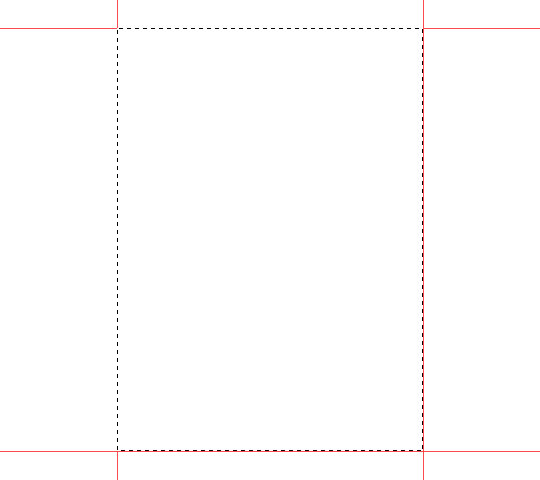
Open a new file 540×480 at 72dpi with a white background.First we are going to define our playing card size. Standard playing card aspect is 1×1.4, so I’m going to drag out a selection at that aspect, ending up with a selection that is 306×423. I’ll center it on the stage and then set guides to each side.
Step 2
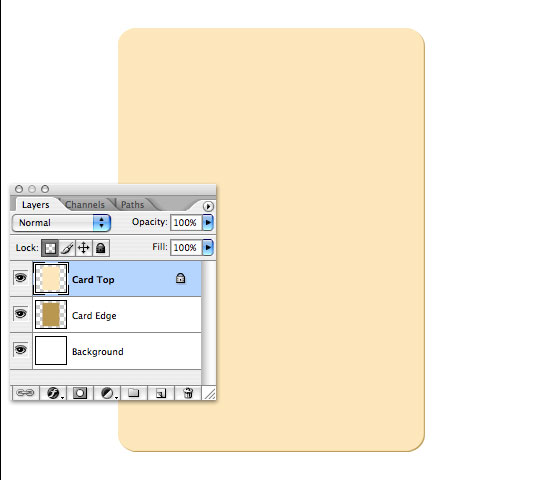
With the card space defined, select the rounded rectangle tool from the custom shape menu with a corner radius of 20, set your foreground color to #c8a762 and draw out a rectangle fit to the guides we laid out in step 1. Name this layer Card Edge.
Step 3
Duplicate the Card Edge layer by pressing Command-J (PC: Ctrl-J), lock the layer’s transparent pixels in the layer palette then fill this new layer with #ffebc6. Rename the layer Card Top. Switch to the Move tool by pressing V, then using the arrow keys move this layer up and left one pixel each. This will allow the Card Edge layer to become the right and bottom edge of the card.(*note: you may hide your guides now by pressing Command-H (PC: Ctrl-H).
Step 4
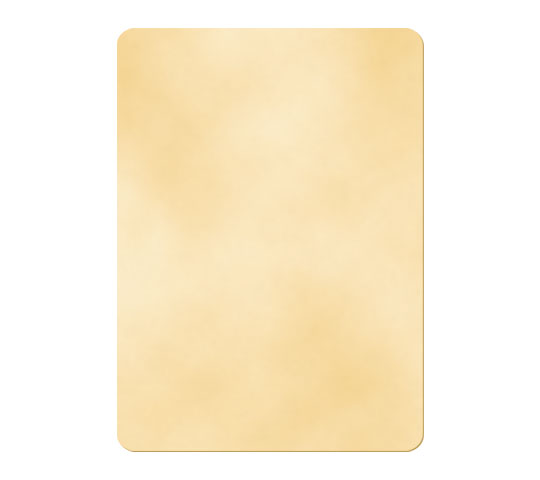
With the new Card Top layer selected (and the transparent pixels still locked), set your foreground color to #ffebc6 and background color to #f4d7a2.From the main menu choose Filter>Render>Clouds. This will use the foreground and background colors we just set to create a cloud effect on the surface of the card. I like this effect to start because it adds a nice variation of tone to the background.
Again from the main menu choose Filter>Noise>Add Noise with a setting of 2, Gaussian and Monochromatic and click OK. The noise filter adds a little texture and crunch to the surface, but is a little to exaggerated and needs a touch of toning down.
From the main menu choose Filter>Blur>Gaussian Blur with a setting of 2 and click OK.
Step 5
Add the following Inner Glow layer style to the Card Top layer by double clicking to the right of the layer name in the layers palette OR by right clicking on the layer and selecting Blending Options from the drop-down menu.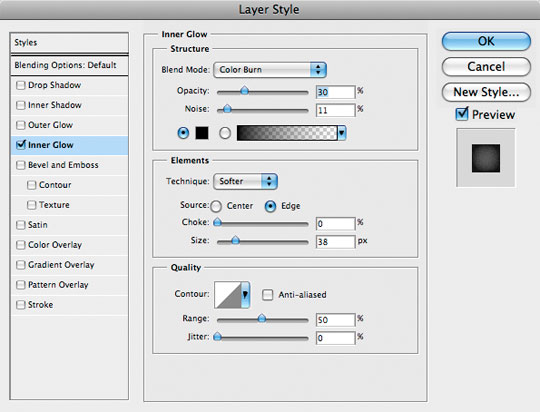
Step 6
Next add a drop shadow to the Card Edge layer by selecting the layer and then double clicking to the right of the layer name in the layers palette OR by right clicking on the layer and selecting Blending Options from the drop-down menu.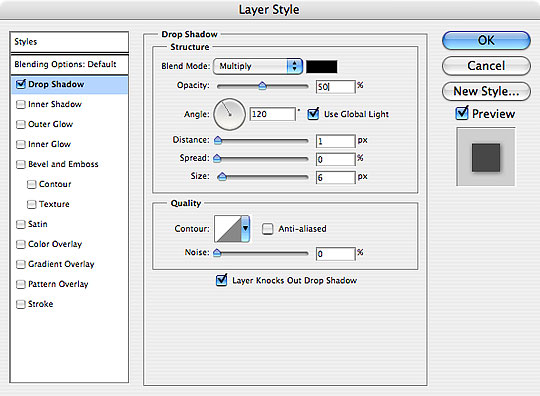
Step 7
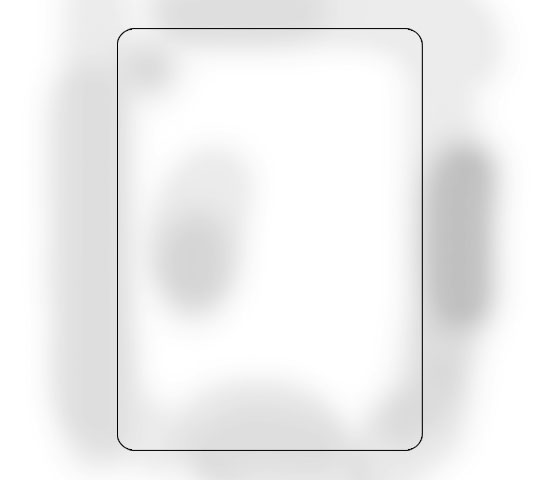
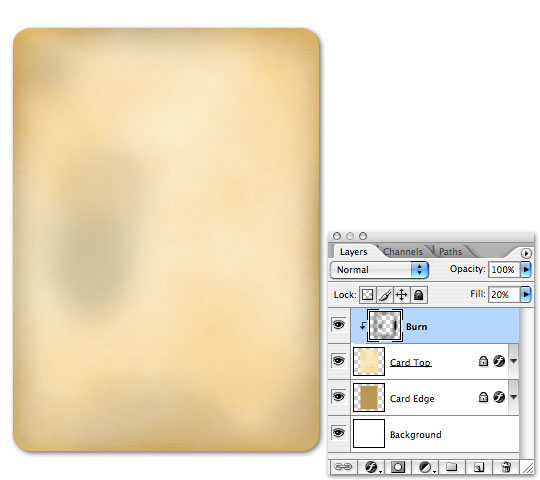
Next, add a layer above the Card Top layer by first selecting the layer and then by clicking on the new layer icon at the bottom of the layers palette OR by pressing Command-Option-Shift-N (PC: Ctrl-Alt-Shift-N). Name this layer Burn and lower the layer’s Fill opacity at the top of the layers palette to 20% and link it to the Card Top layer as a clipping mask by holding the Option (PC: Alt) key while clicking the divider line between the two layers OR by right clicking on the Burn layer and selecting Create Clipping Mask from the menu.Using a round paintbrush around 70px in diameter with a hardness setting of 0, blend mode of Color Burn and Opacity around 30%, paint in some dark areas of the card. I’ve turned off my Card layers in the photo below to show my burn pattern. I outlined the card so you can see where the burns are in relation to the card.
In the following image I’ve turned back on the Card Top and Card Edge layers so you can see the result of the Burn layer.
Step 8
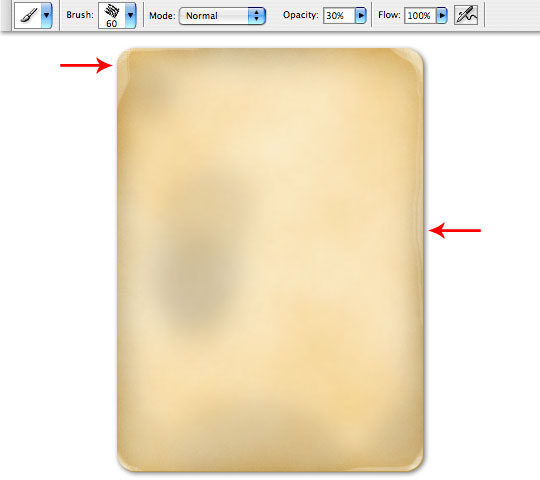
Create a new layer above the Burn layer, name it Dodge and create a clipping mask with this layer as well (*note: now both the Burn and Dodge layers should be linked to the Card Top layer ) and with the Brush tool selected choose the Chalk 60 pixels brush from the brushes menu. The brush should be set to Normal with an opacity of 30%.With the Chalk brush paint randomly around the edges and especially lightly into the corners of the card. With the opacity set at 30% we you can paint overlaying strokes over small areas to make the paper look worn or even torn a bit. See the setting and edge effects in the example below.
Step 9
Create a new layer above the Dodge layer, name it Highlight and create a clipping mask (*note: now we have 3 layers clipped to the Card Top layer).Choose the Gradient tool from the Tools bar, set your foreground color to white and the gradient settings to Foreground-Transparent and Radial Gradient as pictured in the detail below, then clicking on the center of the card, drag the gradient to the top or bottom of the card. This will create a nice center highlight. So far we’ve been burning and antiquing the edges of the card where playing cards see the most use, but the center of playing cards doesn’t get nearly as much abuse so it needs to be a bit lighter.
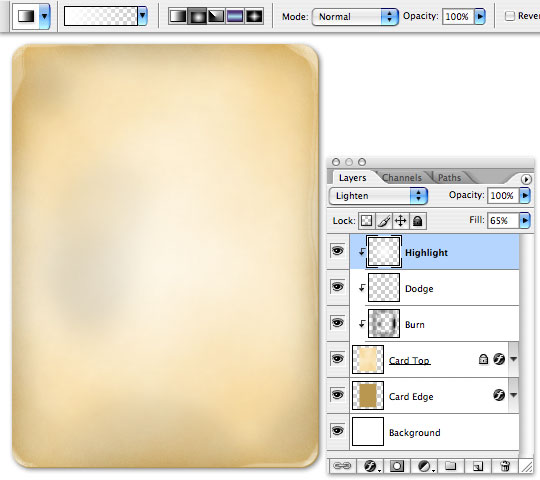
Step 10
Because I still feel like the card needs more abuse, I’m going to select a few of the grunge brushes that I keep in my pocket for just such an occasion. I’ll add a new layer on top and call it Grunge, add it to our Clipping Mask, change the layer blending mode to Color Burn and drop the opacity to 60. Then with a few of the corner grunge brushes, I’ll hit the corners of the file for extra detail. (*note: the grunge brush set I used is included in the tutorial zip file at the end of the lesson.)The first example below shows the grunge at 100% opacity and Normal blending, the second shows the layer with the settings above and clipped to it’s sub-layers.
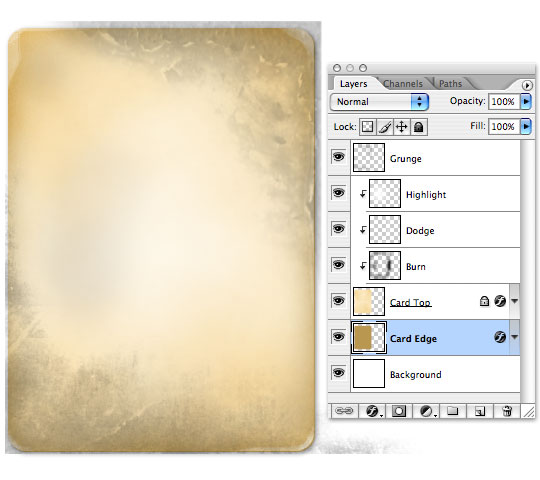
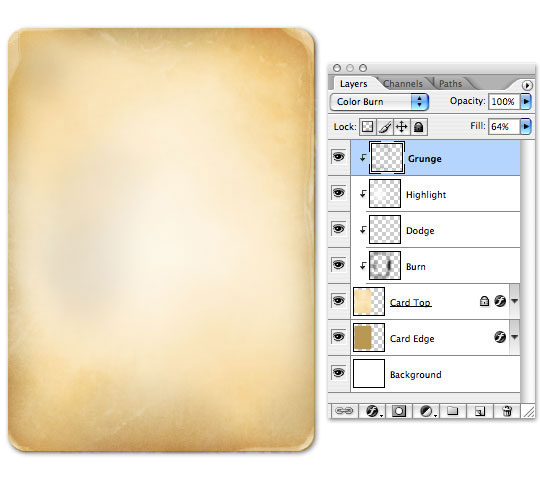
Step 11
Ordinarily at this stage I would have created a vector file for the center spade graphic as well as small spades to go beneath the A’s in the corners, but I thought we would use an image from iStockPhoto instead and work a little blending mode action. I found and downloaded this nice ace of spades photograph, however, it wasn’t shot at exact center, so the perspective was a little off so I isolated the card, created a layer mask to remove the background and a Levels layer to bring the blacks down and the whites up as shown below.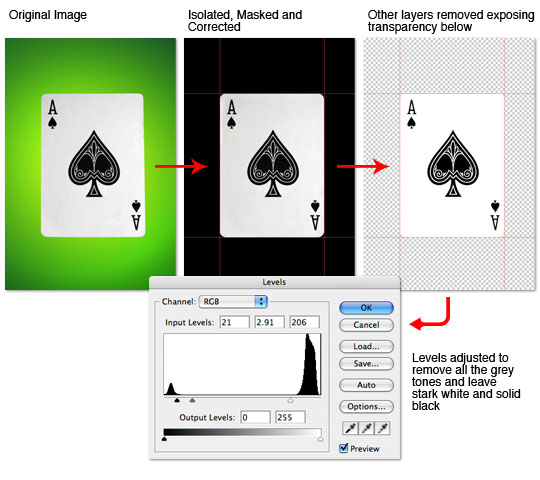
Step 12
Once the graphics were isolated to basic black and white I turned off all the background layers and copied all the visible layers combined by pressing Command-A (PC: Ctrl-A) to Select All, then by pressing Command-Shift-C (PC: Ctrl-Shift-C) I copied all the visible layers and pasted the combined result into my Card document and changed this new layer’s blend mode to Linear Burn in the layers palette. I named the layer Graphics and placed it at the top of the layers palette.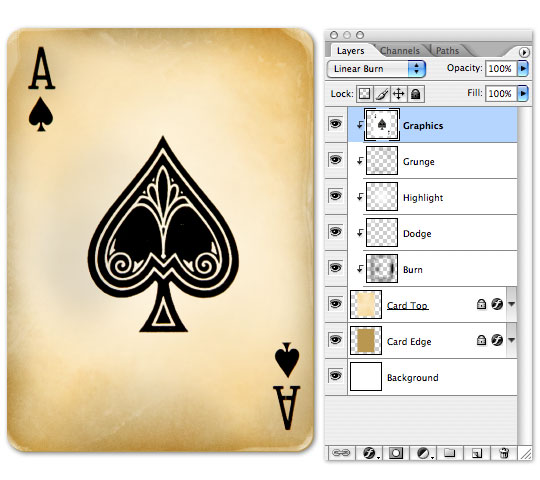
Step 13
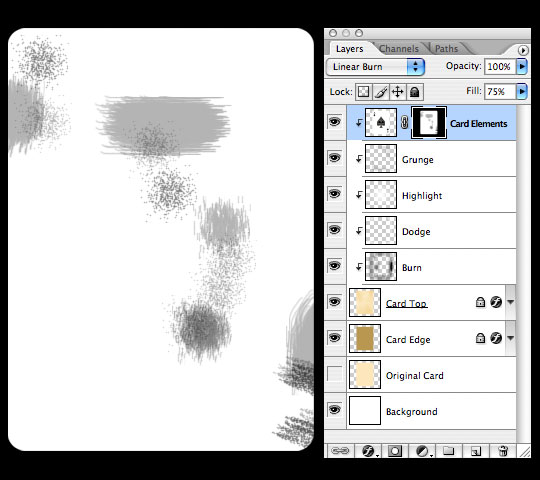
Dropping the Opacity of the Graphics layer to 75% makes the effect more believable, but the graphics need to age a bit as well, so I went ahead and created a layer mask and antiqued it a bit to get the final effect.Create a selection of the card by holding the Command (PC: Ctrl) key while clicking on the layer’s thumbnail. This will select ONLY the object on this layer. With the selection made, I pressed the Layer Mask icon at the bottom of the layers palette (it looks like a light rectangle with a dark circle inside) to mask the layer to the selection. With the new layer mask created (and by default selected), I used the Spatter brush set at 33% Opacity to paint black over the sections of the Graphics layer which I wanted to make more worn.
Below (simply for visual reference) I’ve isolated the Layer mask by holding Option (PC: Alt) while clicking on the Layer Mask thumbnail in the layers palette along with a copy of my final layers palette for reference.
Step 14
And finally the completed card.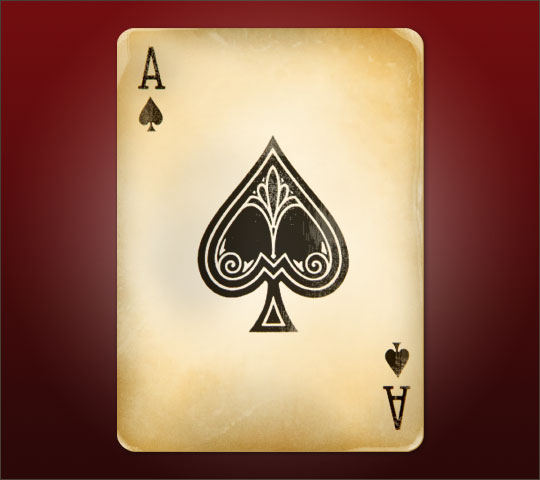
Create a truck coming from a flame
You may have seen the Acura commercials on TV where the car is coming out of the fire, or out of the brick wall debris. Well in this tutorial we are going to create an effect similar to the fire one in Photoshop.
First lets grab some images:
Match ImageTruck Image
Step 1
First we are going to start by opening up our matches image and start cutting one out using the pen tool. Bring the match that we just cut out into a new 1680×1050 document.
Step 2
Downsize your match to about 60% and fill the background with black.
Step 3
Now before we go any further, I want to establish a line with my guide so we can have everything sitting on the same spot horizontally.
Step 4
Go ahead and open up the truck image in Photoshop. Let’s start out by fixing a couple things. First off this truck is going to be flipped when we bring it into our other document, so we want make sure the text on the side will be facing the right way. Go into edit>transform>flip horizontally.
Step 5
Using the square marquee tool, create a box around the emblem on the door. Do control + J to duplicate that area, then go to edit>transform>flip horizontally. Now click on the mask icon at the bottom of the layers window (the square with a circle in the middle of it). Paint, with a 0% hard black brush around the emblem we duplicated. Be careful as to get rid of the unwanted lines, but make sure the old emblem doesn’t show through.
Step 6
Repeat step 5 with the decal on the back. Afterwards, cut out the truck, including the windows. Merge the truck layer with the emblem layers by linking them then control + e to merge them together.
Step 7
Load the path (control + click on the path) that you made to cut out the truck (in the paths tab of the layers palette). Do control + shift + I to get the inverse selection and delete. Then fill the background with blackSince there will be no sky in our final image, we need to get rid of the blue reflections. So to do this go into image>adjustments>replace color. Click on a blue area and adjust the settings as I have below.

Step 8
Since the flames are going to be coming from the back of the truck we are going to darken the front side. Load the truck by control + clicking on the truck layer, and then, using a black to 0% opacity gradient, create a gradient from right to left. Change the opacity of the layer to 80%.
Step 9
Now we are going to adjust the curves, so open it up with control + m and adjust it as I have below.We are also going to drop down the saturation so do control + u to open up the hue/saturation window.

Step 10
Now we are going to change the color balance. Using control + b go into color balance and adjust the settings as I have done below.
Step 11
Merge the truck layer and gradient layer, and bring it into our document. Using control + t, resize the truck to 20%.
Step 12
Go onto Image After and grab some fire images. Change the blend mode of each one to lighten, this will make it so you don’t have to cut them out, the black will just disappear. Using control + u change the saturation to -40 for each one.
Step 13
Now we are going to have the top of the match fade into the darkness. So to do this we are going to add a layer mask (second icon from the left at the bottom of the layers palette). Using a black to 0% opacity gradient, click and drag something you like.
Step 14
We are going to create a gradient below the truck and flames to serve as a base that everything is going to be sitting on. So to do this, we are going to create a radial gradient using a color that we can pull from the flames. I’m using #C98640. Move the gradient so the brightest part is under the flames.Using control + t stretch out the gradient and move the bottom of the gradient so it is just below the guide. Select your square marquee tool and drag a box around the whole area above the guide and delete. With mine, I am going to drop the opacity down to 70% and the saturation (control + u) to -40.

Step 15
Create another radial gradient with the color #FF9C00 that covers the area around the flames. Adjust it with control + t until you get something you like. Change the blend mode to color burn. This layer should be just above the ground gradient we made it step 14.
Step 16
Create another radial gradient on the back end of the truck, this time it is going to be white. Stretch the gradient out and change the blend mode to overlay. This will give the back of the truck more of a highlight.
Step 17
Now I am going to give the wheels a blur so it looks like they are moving. Using the circular marquee tool, create a circle around the front tire. Go to Filter>Blur>Radial Blur and adjust your setting as I have below. Repeat for the back tire.We also want to get rid of the back tire because it is off the ground. So, using your pen tool, cut out the area and delete it.

Final
I added some text, and that’s it, a truck coming out of the flames of a match.Creating A Fantastic Fantasy Night Sky In Photoshop

Step 1
Create a new document. Double-click on the background layer to open the Layer Styles dialog box. Select Gradient Overlay. For the colors, use three colors: pink, blue, and black. Select Radial for the Style.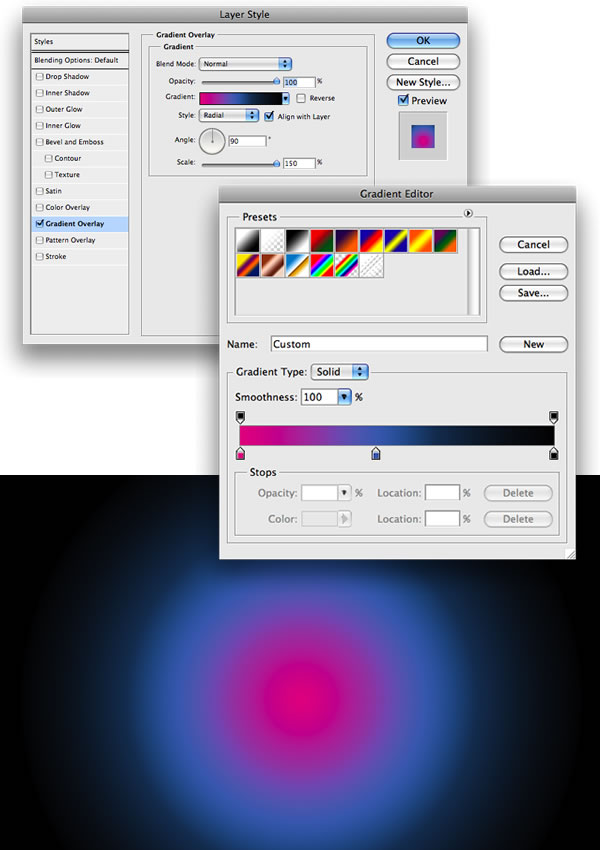
Step 2
Create a new layer and rename it to”ps clouds.” Make sure that the foreground is white and the background is black. Go to Filters>Render>Clouds. Tip: Hold the “Alt” key to create a stronger effect.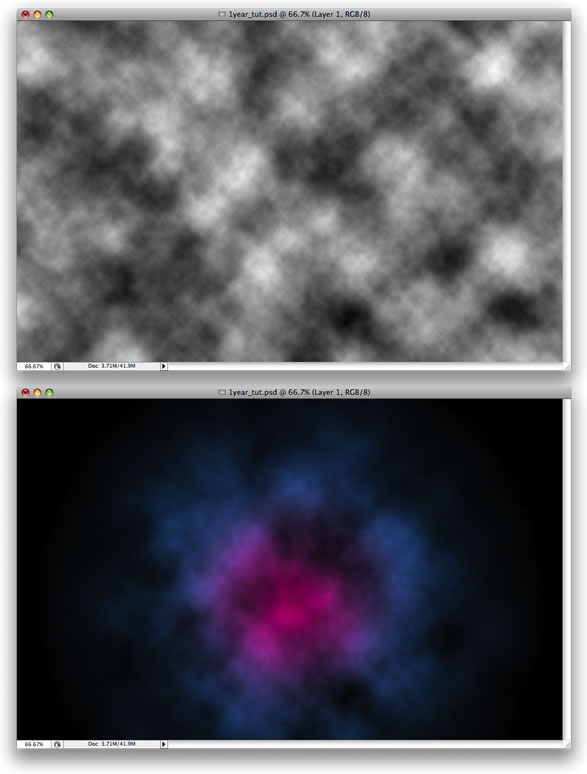
Step 3
To create the clouds we will use the Brush Engine. Create a new Folder and name it “cloud.” Select the Brush Tool and set the brush properties as shown below. The secret is the spacing and the Size Jitter. After that, you can save the brush.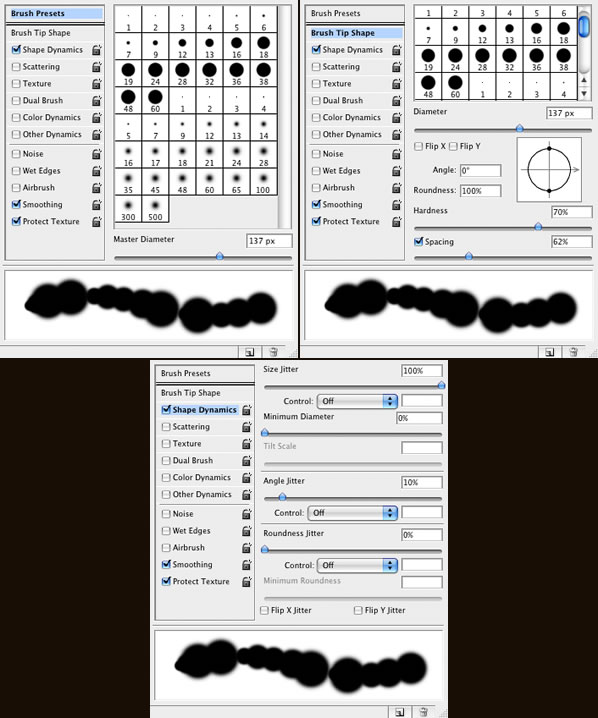
Step 4
We have the brush—now lets create the cloud style. Create three new layers inside the “cloud” folder, andname them “front,” “middle,” and “last.”
Double-click on the “front” layer to open the Layer Styles dialog box and select Gradient Overlay, Bevel and Emboss, and Inner Glow. Copy the Layer Style and apply to the other two layers.
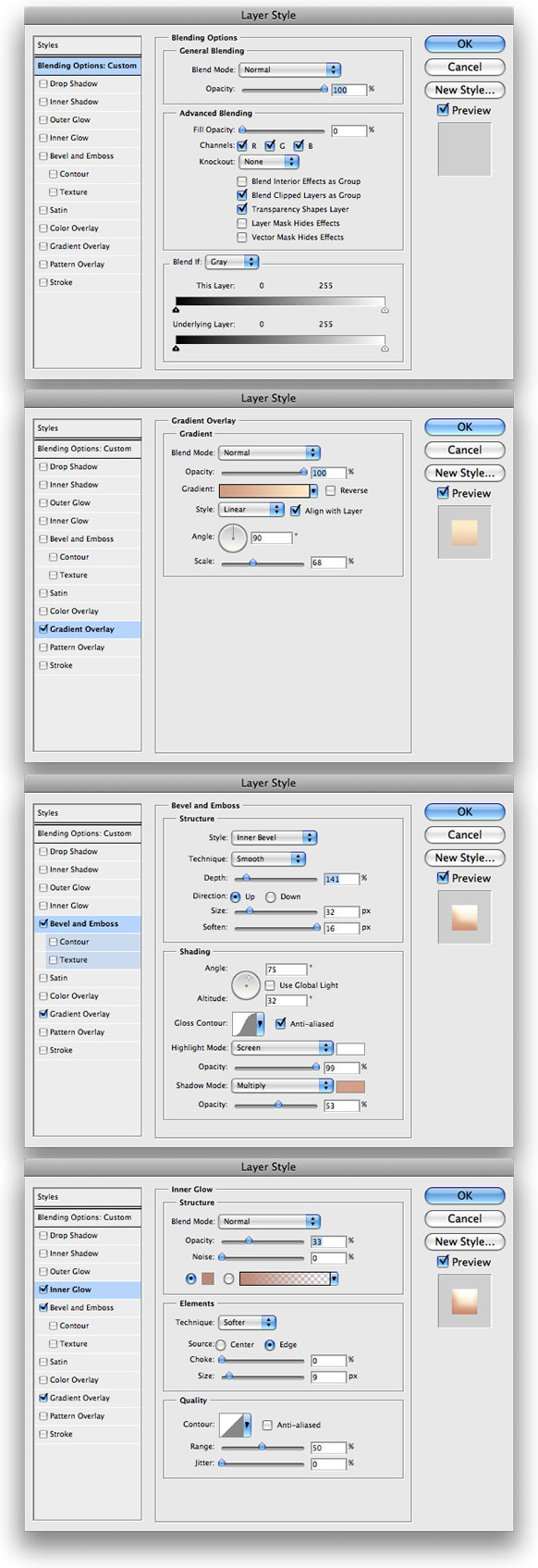
Step 5
Using the brush we created, start painting the clouds. Tip: The volume will be created using the layer order, like in the image below.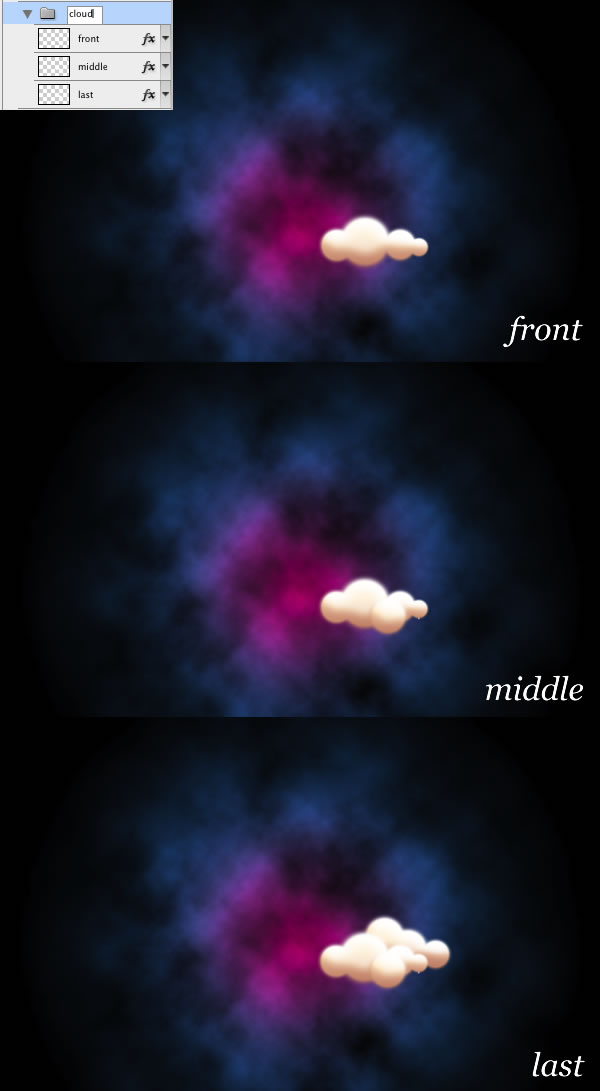
Step 6
After you’ve painted your cloud, select the folder and convert it to a Smart Object. Duplicate the layer and change the blend mode to Multiply. Group the two layers and rename it to “Cloud 1.”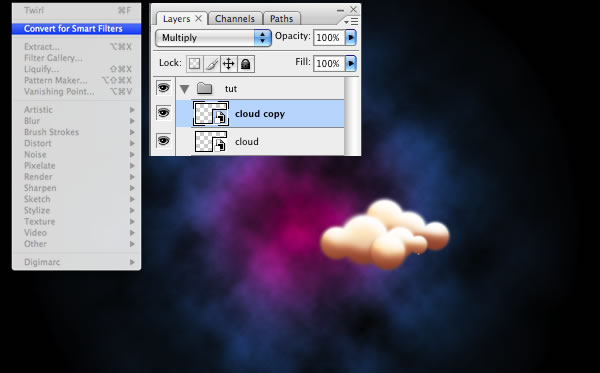
Step 7
Repeat Steps 4, 5, and 6. It’s not necessary to repeat the Layer Style steps though, just Copy and Paste the Layer Style. Create four clouds and place them like in the image below.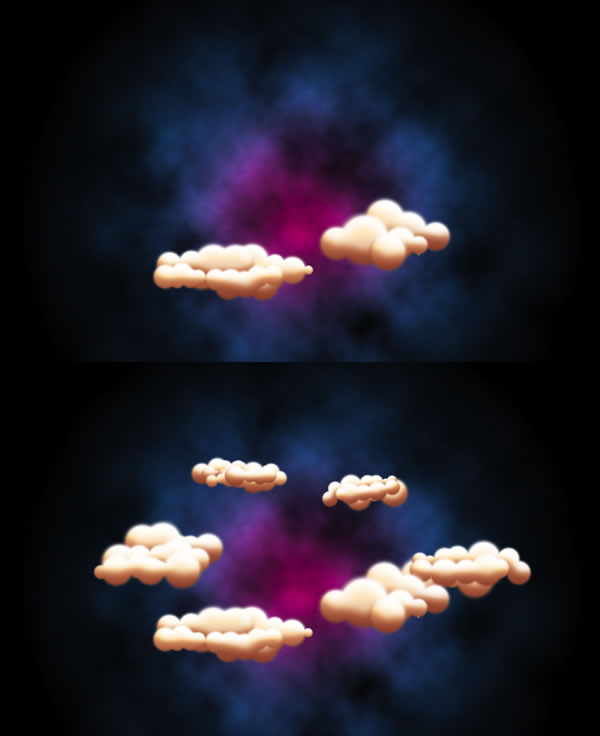
Step 8
Select any cloud folder and convert it to a Smart Object. Change the Blend Mode to Overlay. After that duplicate the layer and group the two layers. Rename the group to “clouds back.”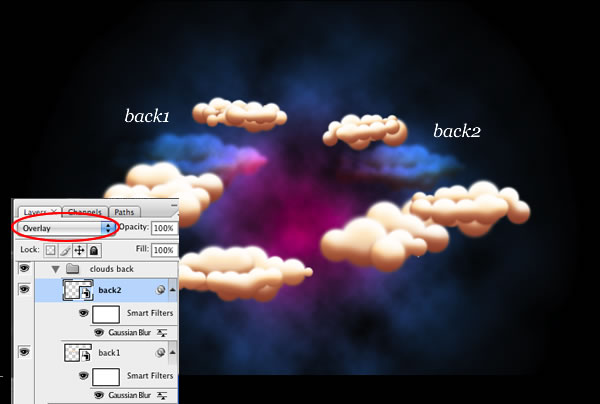
Step 9—Rainbows in Illustrator
In Illustrator select Ellipse Tool (L) and create a circle. Set the Stroke weight to 40px with a purple color.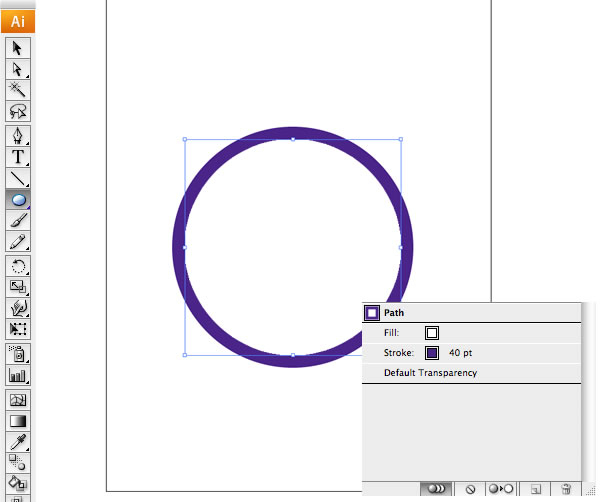
Step 10
Start adding more strokes to the ellipse, increasing the weight by 40px so there will be a 40px purple, 80px cyan, 120px green, 160px yellow, and 200px red. After that copy the vector and go back to Photoshop.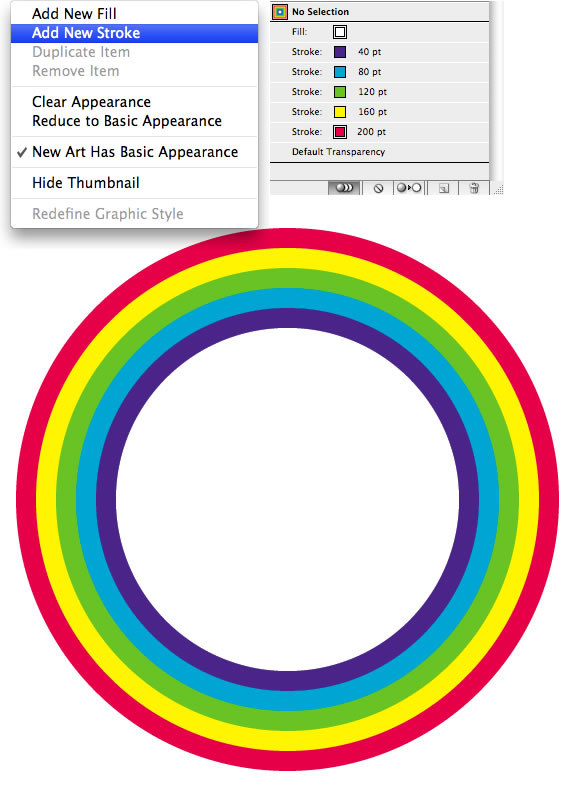
Step 11
Back in Photoshop, paste the vector and choose Paste as Pixels. After that, using the Magic Wand Tool (W), select the white part of the rainbow and delete it. Then convert it to a Smart Object and group it. Rename the group “rainbow 1.”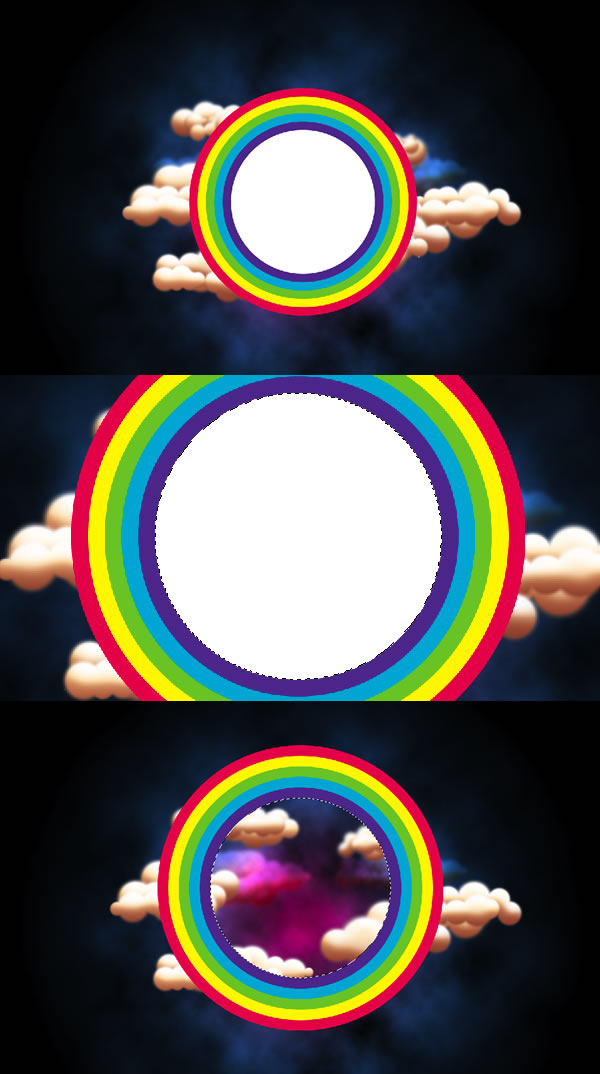
Step 12
Place the rainbow between two clouds and using the Polygonal Lasso Tool (L), select the part of the rainbow you want to hide. Then select the group (not the layer), and go to Layer>Layer Mask>Hide Selection and hide that area.After that you can duplicate the “rainbow 1″ group in order to create another rainbow.
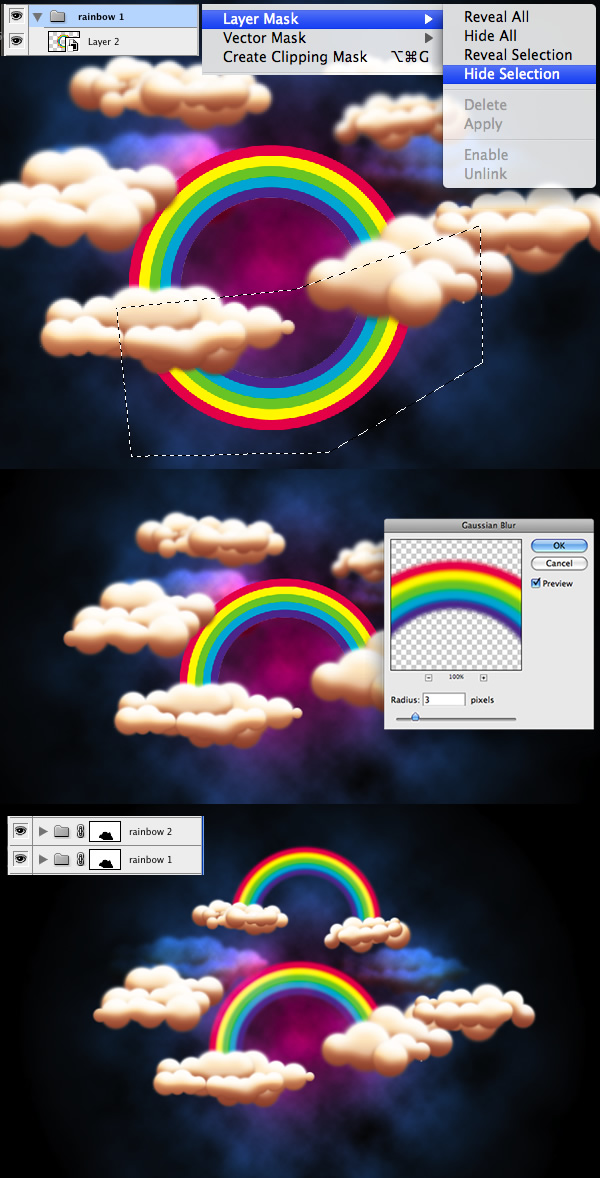
Step 13
Create four new layers and paste on them the same Layer Style we used for the clouds. Select the Brush Tool and create another brush like the images below. Then create small clouds where the rainbows touch the clouds at the beginning and end of the rainbows.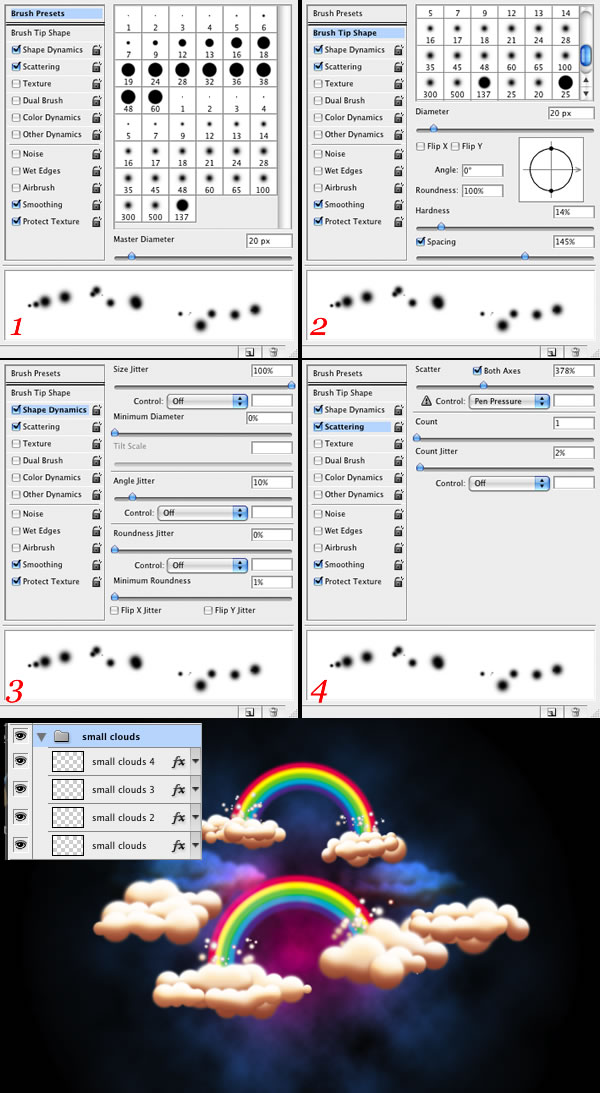
Step 14
Create a new layer beneath the clouds and rainbows. Fill it with black and change the Blend Mode to Color Dodge. Again select the Brush Tool and create another Brush in order to create the stars.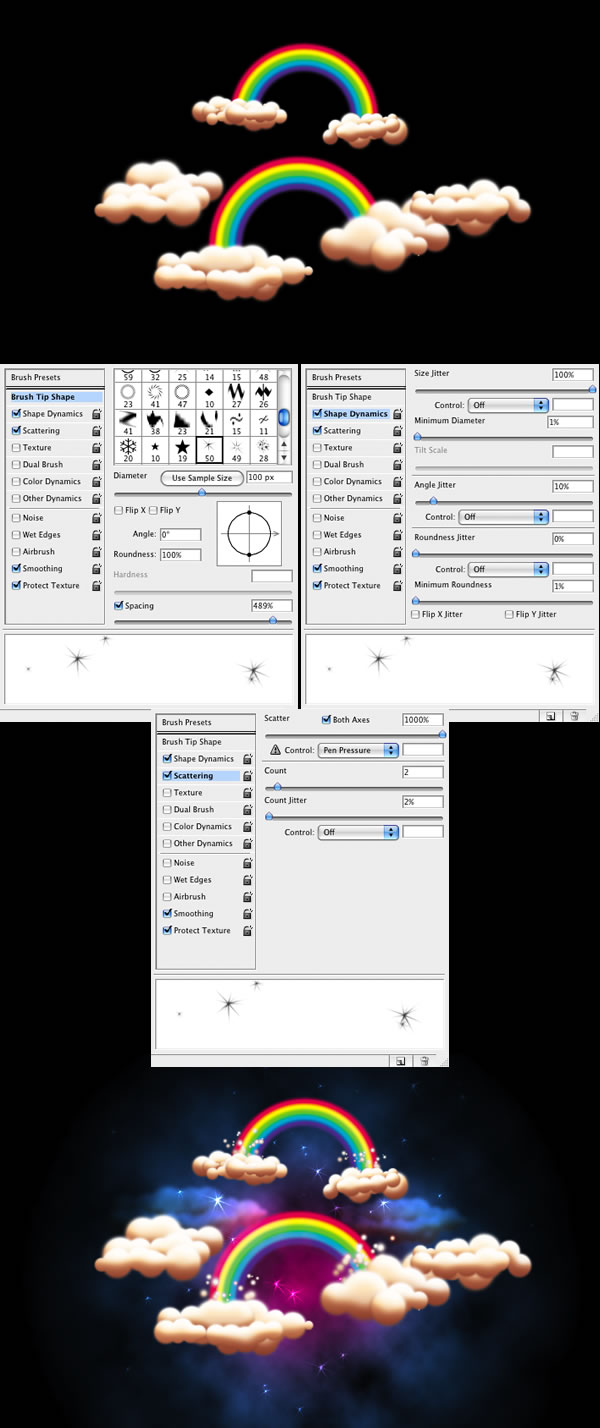
Step 15
Repeat step 14; however, this time select a circle shape instead of the star. Reduce the size of the brush, and create the rounded stars.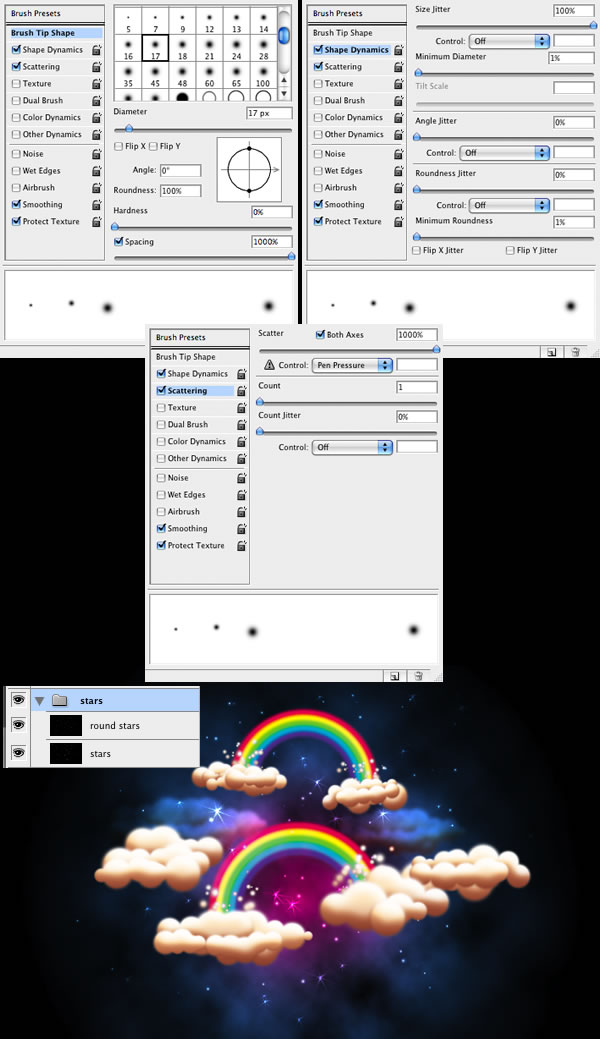
No comments:
New comments are not allowed.